Your monitor might be holding back your performance more than you think. Factory default settings rarely deliver the speed, clarity, and responsiveness competitive gaming demands. This guide breaks down the best monitor settings for gaming so you can eliminate unnecessary input lag, reduce motion blur, and improve visibility in fast-paced matches. Uncalibrated displays create visual inconsistencies that put you at a disadvantage—but the fix is simpler than most players realize. Our recommendations are built on extensive hands-on testing across multiple monitor types and game genres, giving you a proven, step-by-step process to optimize your OSD and GPU settings for a real in-game edge.
The Foundation: Understanding Core Monitor Technologies
To elevate your gaming experience, fine-tuning your monitor settings can make all the difference, especially as we gear up for thrilling competitions like the Undergrowthgameline Online Gaming Event.
Before tweaking the best monitor settings for gaming, you need to understand your panel.
Panel types shape everything:
- IPS (In-Plane Switching): Best color accuracy and viewing angles. Ideal for open-world titles where visual fidelity matters (think spotting enemies in Warzone’s Al Mazrah haze).
- TN (Twisted Nematic): Fastest pixel transitions, favored in esports arenas from Seoul to Stockholm. Competitive players accept weaker colors for raw speed.
- VA (Vertical Alignment): Superior contrast ratios, meaning deeper blacks—great for horror titles where shadow detail is tactical.
Refresh rate (Hz) is how many frames your monitor shows per second. 60Hz feels standard, 144Hz is dramatically smoother, and 240Hz is tournament-tier fluidity. Matching your GPU output to native Hz prevents wasted frames.
Response time (ms) measures pixel transition speed. Lower reduces motion blur and ghosting. GtG tracks gray-to-gray shifts; MPRT measures perceived blur.
Adaptive Sync (G-Sync/FreeSync) syncs GPU and display, eliminating tearing and stutter—almost always enable it.
Mastering Your On-Screen Display (OSD) for a Competitive Edge
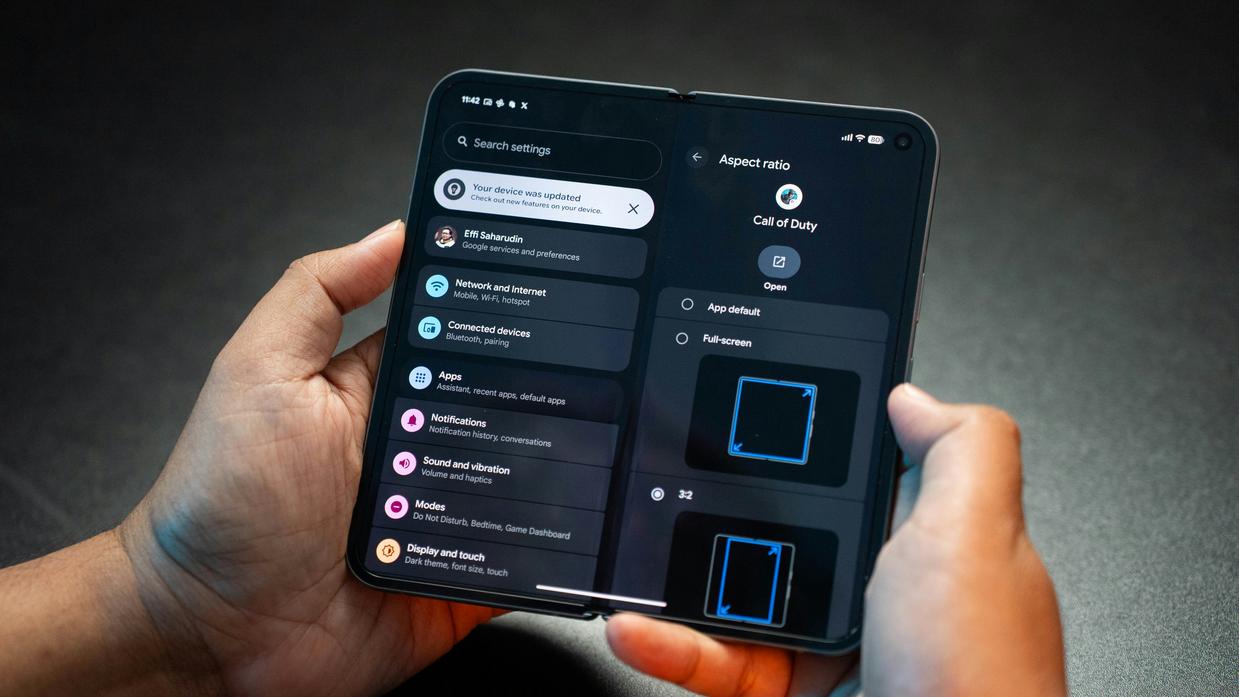
Your monitor’s On-Screen Display (OSD) is the control panel for how your game actually looks. Think of it as the difference between watching a match from the stands and standing on the field. Small tweaks here can create a real competitive advantage.
Overdrive: Reducing Ghosting Without Creating New Problems
Overdrive controls how quickly pixels change from one color to another. Faster transitions reduce GHOSTING (that blurry trail behind moving objects). Most monitors offer levels like Off, Normal, Fast, and Extreme.
Here’s the catch: higher isn’t always better. On “Extreme,” you may see OVERSHOOT (also called inverse ghosting), where bright halos appear around moving objects. It’s like sharpening a photo so much it looks artificial. Start at Normal or Fast and test in a fast-paced game. (Pro tip: swing your camera quickly in a dark corridor to spot artifacts.)
Brightness and Contrast: Clarity Without Eye Strain
Brightness controls overall light output. Contrast adjusts the difference between dark and bright areas. Too much brightness causes fatigue; too little hides enemies in shadows.
Use in-game calibration screens to find balance. You want blacks that look deep but still reveal shadow detail. If you can’t distinguish the darkest test boxes, dial it back. This is foundational to dialing in the best monitor settings for gaming.
Black Equalizer / Shadow Boost: Seeing in the Dark
This setting raises the gamma (mid-tone brightness) of darker areas only. In competitive shooters, it helps reveal enemies hiding in corners. Use it sparingly. Too high, and the image looks washed out (like someone turned on the lights everywhere).
Color Vibrance / Saturation: Making Targets Pop
Increasing vibrance boosts color intensity, helping player models stand out. But over-saturation can crush fine details. Aim for subtle enhancement, not cartoon mode.
Game Modes and Presets (FPS / RTS / RPG)
Presets are decent starting points, especially FPS modes that prioritize visibility. However, custom tuning almost always delivers superior performance. Presets are templates—not final builds. Adjust, test, refine.
GPU Software Tuning: Fine-Tuning Beyond the Monitor
Your monitor’s on-screen display (OSD) is just the starting line. To truly dial in the best monitor settings for gaming, you need to step into your GPU software.
Accessing NVIDIA & AMD Controls
First, right-click your desktop. Select NVIDIA Control Panel or AMD Radeon Software. From there, head to Display settings. This is where software-level tuning lives—separate from your monitor’s hardware controls.
Digital Vibrance / Saturation
On NVIDIA, increase Digital Vibrance. On AMD, adjust Saturation. These settings amplify color intensity at the GPU level, improving enemy visibility in darker maps (think Warzone interiors or Valorant corners). Start with small 5% increments. Too high, and skin tones look radioactive.
Gamma and Contrast Adjustments
Next, fine-tune Gamma and Contrast. Unlike basic OSD sliders, GPU controls offer more granular precision. For example, slightly raising gamma can reveal shadow detail in horror titles without washing out bright scenes.
Enabling G-Sync / FreeSync
Finally, enable Adaptive Sync:
- Open GPU control panel.
- Select Set up G-Sync (NVIDIA) or enable FreeSync (AMD).
- Confirm your monitor supports it.
- Apply changes.
This eliminates screen tearing and reduces stutter (your eyes will thank you).
And while optimizing visuals, don’t overlook peripherals—like choosing between mechanical vs membrane keyboards which is better for gaming.
Genre-Specific Profiles: Calibrating for Your Favorite Games
Different genres demand different priorities—so stop using one-size-fits-all presets (yes, even that “FPS Mode” you never change).
For competitive shooters like Valorant, CS:GO, and Apex Legends, crank overdrive to high, raise black equalizer/shadow boost, and slightly increase digital vibrance. The goal is faster pixel transitions (how quickly a pixel changes color) and clearer enemy silhouettes. If you’re serious about climbing ranks, these are the best monitor settings for gaming in twitch-heavy titles.
For cinematic RPGs and action games like Cyberpunk 2077 or Elden Ring, prioritize color accuracy, deep contrast, and moderate brightness. Disable aggressive overdrive to avoid ghosting artifacts that break immersion (nothing ruins a boss fight like smeared visuals).
For RTS and MOBAs such as StarCraft II and League of Legends, choose a balanced profile:
- Sharp text clarity
- Accurate unit colors
- Standard 2.2 gamma
Pro tip: Save separate presets per genre so switching takes seconds, not guesswork.
Your Calibrated Advantage: From Settings to Victory
You came here to eliminate motion blur, fix poor visibility, and stop screen tearing from costing you wins. Now you have a clear, step-by-step framework to make it happen. Default settings leave performance on the table—but dialing in the best monitor settings for gaming unlocks smoother motion, sharper clarity, and the responsiveness competitive play demands.
This isn’t guesswork. It’s a measurable edge tailored to your hardware, your games, and your playstyle.
Don’t let another match slip away because of avoidable settings. Apply these optimizations tonight and feel the difference immediately. Take control of your display, sharpen your advantage, and turn every frame into a winning opportunity.